

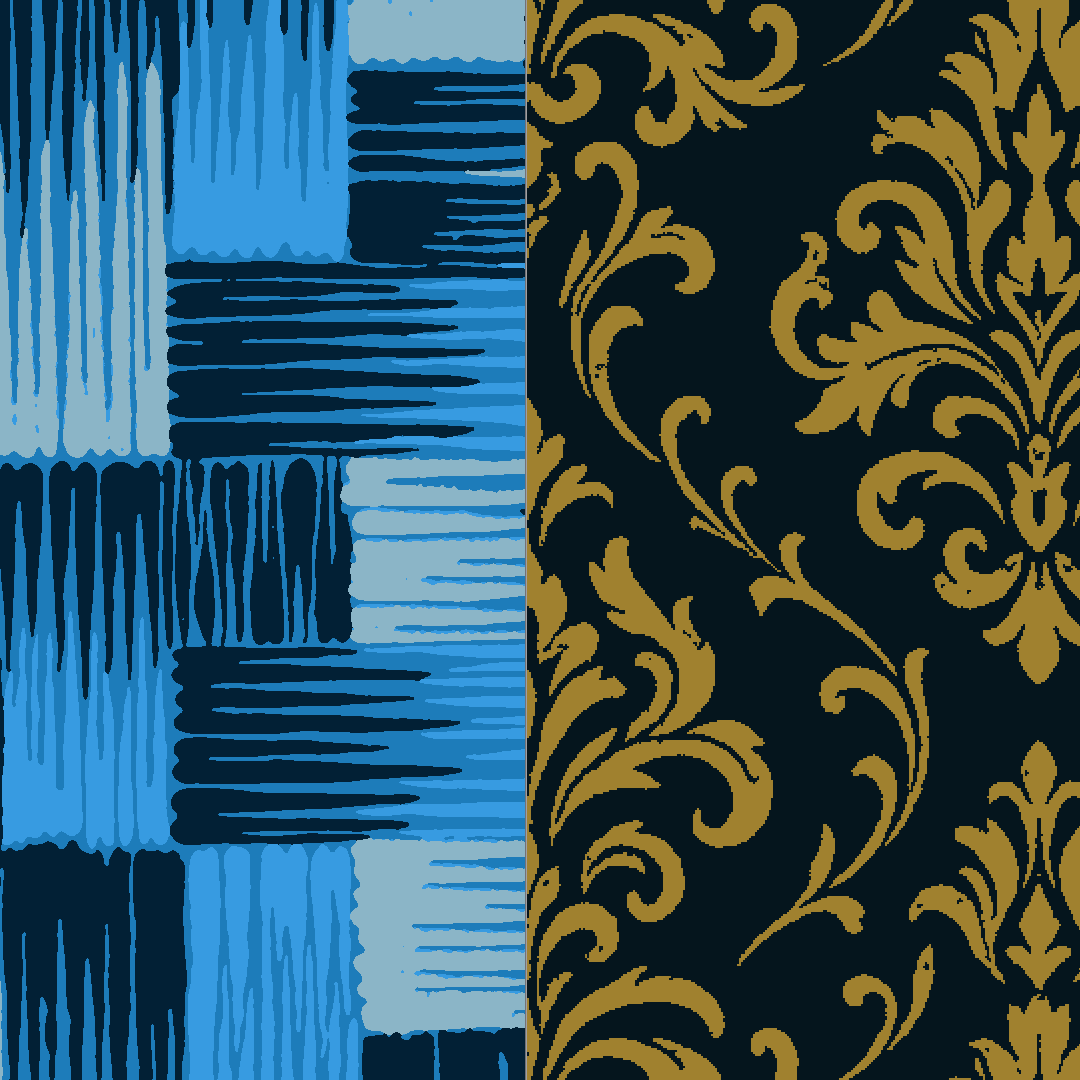
Fast image cleanup with Averaging and Despeckle in ArahPaint
We’ve upgraded the Averaging ve Despeckle tools in ArahPaint, turning them into standalone features with dedicated dialog windows. This gives you clearer control over all parameters and an immediate visual preview of the effect.
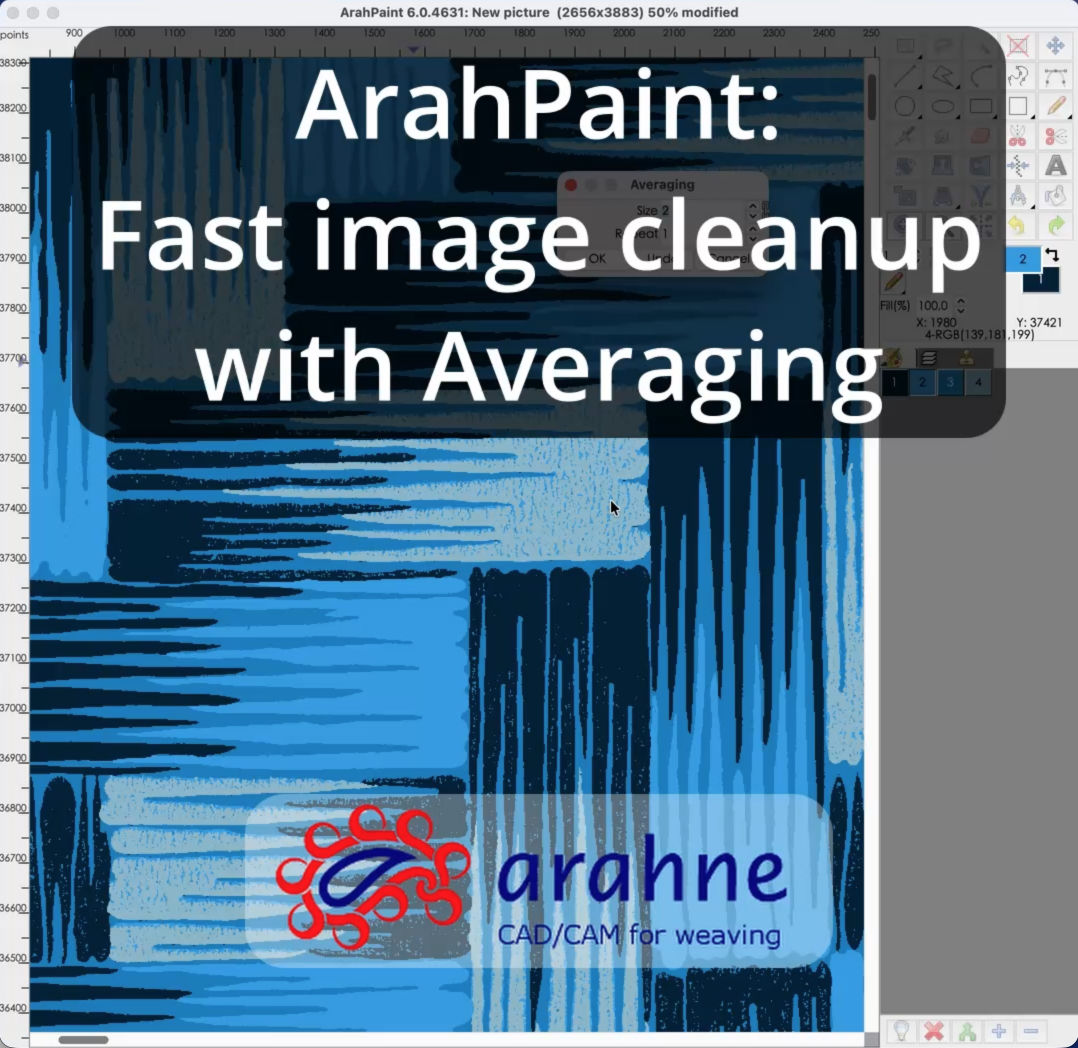
Averaging tool
To use Averaging, open Filters > Averaging, then click Preview to observe the changes in real time. Adjust the Size parameter to define the pixel radius, and use Repeat to apply the selected Size multiple times for a stronger smoothing effect.
Check out the short video tutorial on how to use Averaging our Youtube channel.
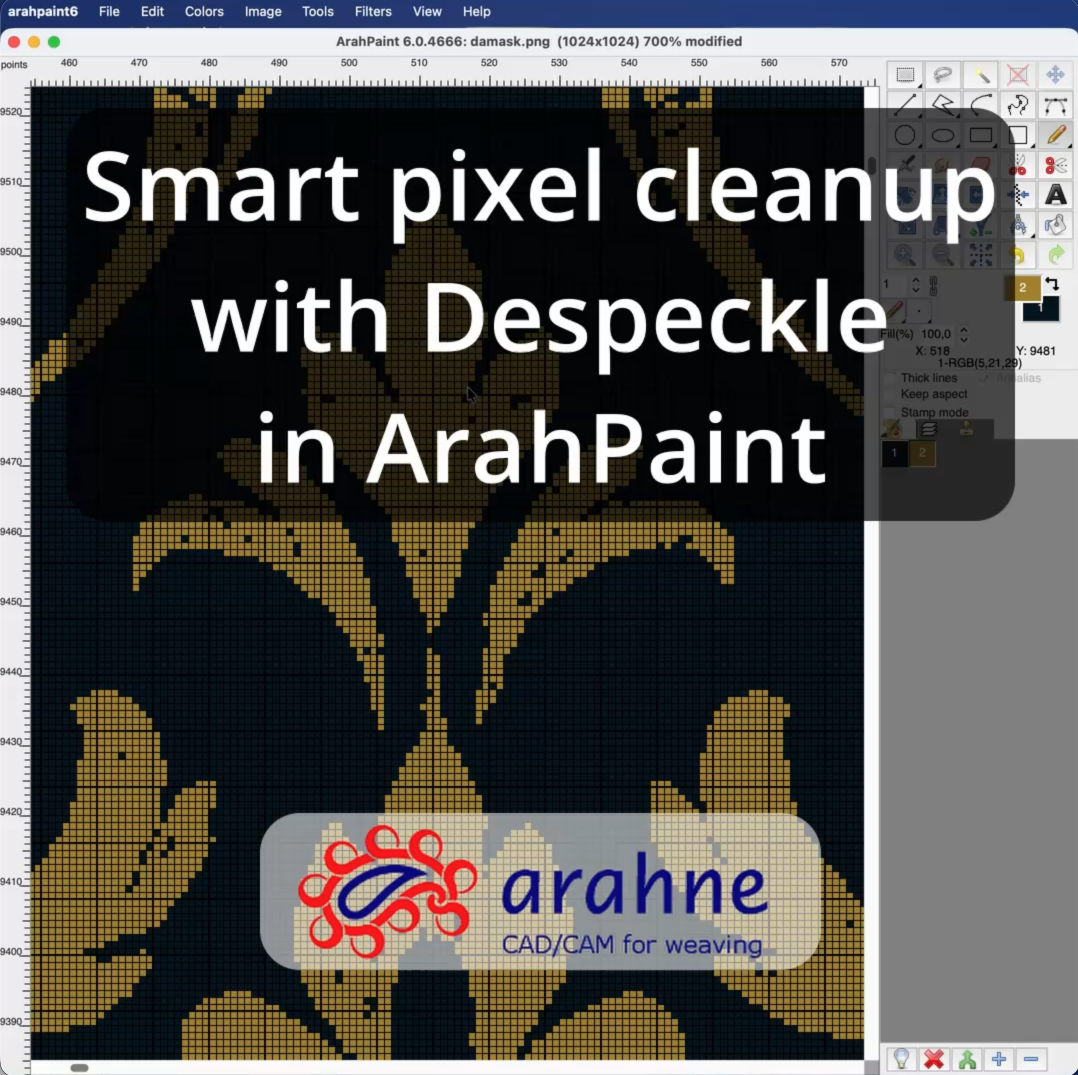
Despeckle tool
To use Despeckle, go to Filters > Despeckle and click Preview to see the cleanup effect. Set the Neighbor parameter (1–12) to define the size of the pixel cluster you want to target, and adjust Repeat to apply multiple despeckling passes for a more intensive cleanup.
Check out the short video tutorial on how to use Despeckle on our Youtube channel.
You may wonder: what’s the major difference between Averaging and Despeckle? Both are used for image cleaning, but they work in fundamentally different ways.